Exporting your application from Oriel to PDF
PanelAce asks for the application form you submitted, because the panel only asks about what you wrote in it. The submitted form in Oriel has a Print button but no download button, and printing to a PDF gives you a file you can upload. The steps below should save you working it out yourself.
PanelAce is not connected to Oriel. These steps follow Oriel’s screens as they looked in November 2026.
Step by step
- Sign in to Oriel and find the My applications list.
- Pick the application you are preparing for. In its details, open Application options and choose View submitted application form.
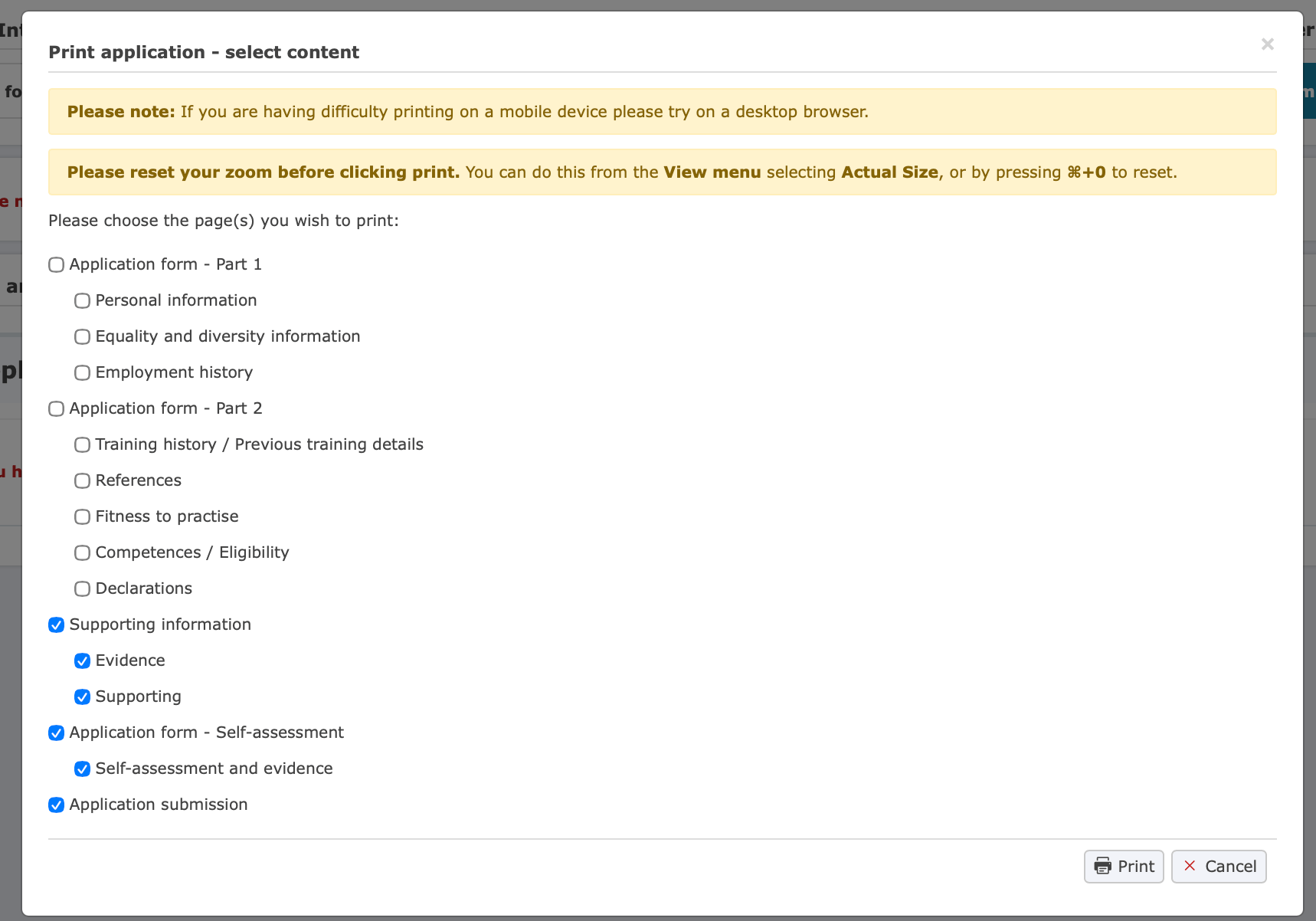
- Press Print, at the top right of the form. A box called “Print application - select content” opens.
- Tick only these:
- Employment history
- Training history / Previous training details
- Supporting information (Evidence and Supporting)
- Application form - Self-assessment
- Application submission
- Leave these unticked:
- Personal information
- Equality and diversity information
- References
- Fitness to practise
- Competences / Eligibility
- Declarations
Employment history sits under “Application form - Part 1”, and Training history under “Application form - Part 2”. Tick those two lines on their own, not the Part 1 or Part 2 heading, so the rest of each part stays out.
- Press Print in the box. When your browser’s print window opens, choose to save as a PDF instead of sending it to a printer.
- Upload that PDF on PanelAce’s upload page.
If printing does not work
Oriel’s print box carries two notes of its own:
- “Please reset your zoom before clicking print.” Its note says you can do this from the View menu by choosing Actual Size, or by pressing ⌘+0 (Ctrl+0 on Windows).
- “If you are having difficulty printing on a mobile device please try on a desktop browser.”
Why some sections stay out
The IMT form, for example, says that “Interviewers will only routinely access your employment history and your responses to the questions below”. PanelAce reads the same kind of material: your jobs, your training and your supporting answers.
We never need your personal details or identifiers, your equality and diversity answers, your referees or your declarations. Leaving them out of the PDF means they never leave your computer. If any of them do end up in the file, PanelAce does not read facts from them.